
Over 99 percent of accounts that are compromised do not have multi-factor authentication enabled. Eighty-one percent of all data breaches are caused by weak, reused, or stolen passwords. In 2025 alone, over 4 billion login credentials were leaked from breached companies. Automated credential stuffing tools test stolen username-password pairs across hundreds of sites simultaneously — if your password for one service leaks, those bots will try it on your bank, your email, your cloud storage, and your social media accounts within hours. And modern password cracking tools can test 90 percent of user-generated passwords successfully — including many that users believe are strong — using combinations of dictionary words, common substitutions, and known patterns that people reliably follow when creating passwords they actually remember.
Passwords are not bad security. They are insufficient security — fundamentally limited by the fact that they are a single factor that can be stolen, guessed, phished, leaked from a third-party database, or purchased from data brokers. A password that has never been exposed in any breach and is genuinely random can still be stolen by malware, phished through a convincing fake login page, or obtained through a breach of the service where it is used — without any failure on the part of the person who chose it. The security of any account protected only by a password is entirely contingent on the security of every service that password interacts with — and that is a dependency on organisations whose security practices you cannot control and whose breach history suggests you should not fully trust.
Two-factor authentication — requiring a second verification factor in addition to a password — addresses this fundamental limitation by ensuring that even a stolen, guessed, or leaked password cannot alone provide access to an account. This guide explains exactly how 2FA and MFA work, the specific forms that second factor can take and how they compare in terms of security and convenience, the attacks that can bypass certain forms of MFA and how to choose the forms that resist them, the passkey technology that is replacing passwords and MFA simultaneously, and the practical steps for enabling strong authentication on the accounts where it matters most.
How Two-Factor Authentication Actually Works
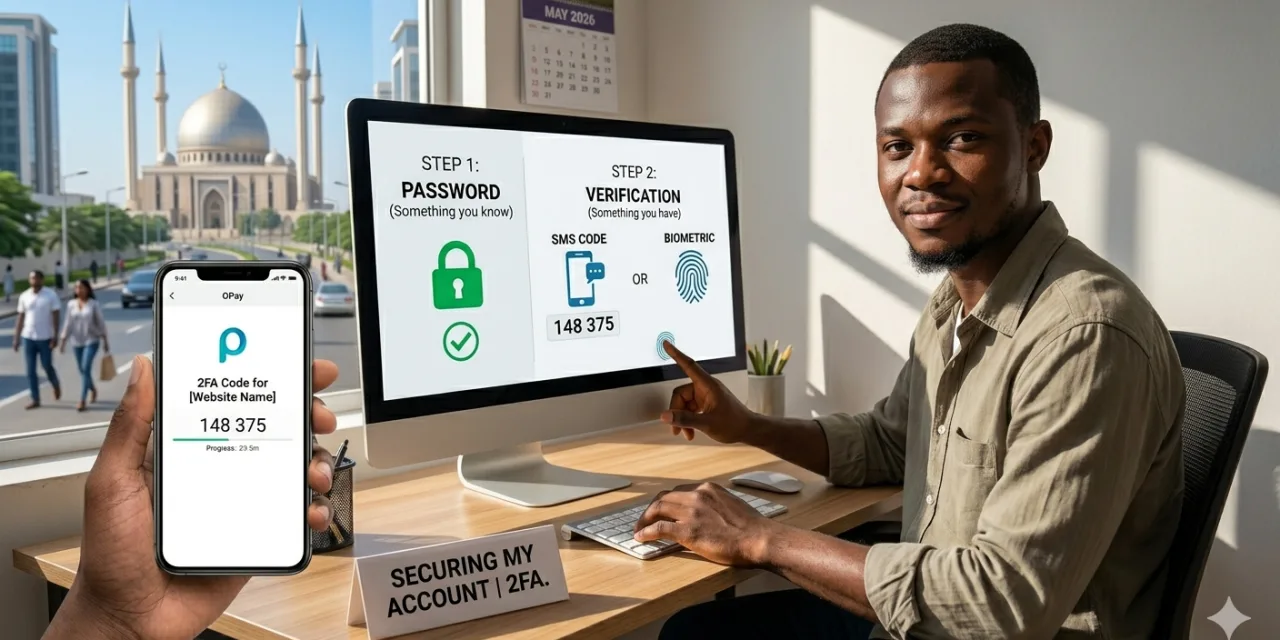
Authentication is the process of proving that you are who you claim to be when accessing a system or service. Authentication factors fall into three categories: something you know (a password, PIN, or security question answer), something you have (a phone, a hardware token, or a smart card), and something you are (a fingerprint, face, or other biometric). Single-factor authentication — the password model that most people still rely on — uses only one factor. Two-factor authentication requires any two of these three categories. Multi-factor authentication requires two or more, sometimes with additional contextual factors.
The security value of two-factor authentication derives from the independence of the factors. When your password is stolen by a data breach, the attacker has your “something you know.” If the account also requires “something you have” — an authentication code from your phone — they cannot access your account with the password alone. They would need to also physically possess your phone, or compromise the delivery mechanism for the second factor through a separate, independent attack. The difficulty of simultaneously stealing both factors from separate, independent sources is what makes two-factor authentication so dramatically more effective than single-factor authentication against the automated credential attacks that drive most account compromises.
The sequence of a standard 2FA login: the user enters their username and password. If the password is correct, rather than granting access immediately, the service requests the second factor. The user provides it — a one-time code from an authenticator app, a hardware security key press, a biometric scan, or a push notification approval. Only if both factors are successfully verified is access granted. An attacker who has the password but not the second factor hits an impassable wall at the second step — they have the first key but not the second, and the door does not open.
The Forms of MFA: Ranked from Weakest to Strongest
Not all MFA is equal. CISA’s guidance is explicit on this point: phishing-resistant MFA is the standard that organisations should strive for, and there is meaningful variation in security strength between different MFA methods. Understanding this hierarchy — from most convenient and least secure to least convenient and most secure — helps make better choices about which method to use for which accounts.
SMS-based 2FA (the weakest form — still better than nothing) sends a one-time code to the user’s registered mobile number, which the user then enters to complete authentication. It is the most widely deployed form of MFA because it requires no additional software or hardware — any phone that can receive a text message can use it. It is also the most vulnerable, for a specific and increasingly exploited reason: SIM swapping. In a SIM swap attack, an attacker contacts the target’s mobile carrier, impersonates the account holder, and convinces the carrier to transfer the target’s phone number to a SIM card the attacker controls. Once they control the number, they receive all SMS messages — including 2FA codes — sent to it. In 2025, high-profile victims lost millions in cryptocurrency through SIM swap attacks. SMS-based 2FA is now considered insecure by cybersecurity experts, including CISA, which recommends against it for high-value accounts where better alternatives are available. Use it where better options are unavailable. Do not rely on it for accounts whose compromise would cause significant harm.
Authenticator apps — TOTP codes (strong, recommended default) generate time-based one-time passwords (TOTP) — six or eight digit codes that change every 30 seconds — using an algorithm that does not require a network connection. The most widely used authenticator apps are Google Authenticator, Microsoft Authenticator, and Authy. The TOTP code is generated locally on the device and is valid for a very short window — an attacker who captures a code through network interception (a man-in-the-middle attack) has at most 30 seconds to use it before it expires, making real-time interception attacks significantly harder than SMS interception. Authenticator apps also do not depend on the mobile carrier’s security — SIM swap attacks do not affect authenticator app codes, because the app does not use the phone’s number. The limitation of authenticator apps is account recovery: if you lose access to the device running the authenticator app without backup codes, recovering access to MFA-protected accounts can be difficult. Keeping backup codes stored securely offline, or using an authenticator app that supports secure backup (Microsoft Authenticator’s cloud backup, Authy’s encrypted backup), addresses this.
Push notification approval (convenient, vulnerable to MFA fatigue) sends a push notification to a registered app on the user’s phone, which the user approves or denies with a tap. This is more convenient than TOTP codes — no typing required — and is the form of MFA that large organisations most commonly deploy to employees because of its low friction. Its security limitation is MFA fatigue attacks: attackers who have obtained valid credentials can repeatedly trigger MFA approval requests by attempting login, generating a stream of push notifications to the user’s phone until the user approves one out of confusion, fatigue, or annoyance. The Uber 2022 breach began exactly this way — an attacker flooded an employee with push approval requests for over an hour, then impersonated IT support on WhatsApp to convince the employee to approve the next one.
The mitigation for MFA fatigue attacks is number matching — a feature now available in Microsoft Authenticator and Google’s identity platform that requires the user to type a number displayed on the login screen into the authenticator app, rather than simply tapping approve or deny. Number matching converts a passive approval into an active confirmation that the user is at the login screen — which prevents the scenario where an employee approves a push notification they did not initiate. CISA recommends number matching as a minimum requirement for push-based MFA in organisational deployments.
Hardware security keys — FIDO2/WebAuthn (the strongest widely available MFA) are physical devices — typically USB-A, USB-C, or NFC — that authenticate the user by generating a cryptographic response to a challenge from the service, using public key cryptography and a private key that never leaves the hardware device. The most widely known hardware security key is the YubiKey family from Yubico. Hardware keys are phishing-resistant by design: the cryptographic challenge-response is bound to the specific domain of the legitimate website, meaning that a phishing website impersonating the real site cannot obtain a valid authentication — even if the user enters their password, the hardware key will not generate a valid response for a different domain. CISA identifies FIDO/WebAuthn as the only widely available phishing-resistant authentication method and recommends it for organisations handling sensitive data or at elevated phishing risk. Hardware security keys at $25 to $60 per device are a material cost for individual consumers but trivial compared to the potential cost of account compromise for most business use cases.
Biometric authentication (context-dependent security) — fingerprint, face recognition, or iris scan — provides the “something you are” factor. As a standalone authentication factor, biometrics have both strengths (you cannot forget them, they cannot be reused across services) and limitations (biometric data, if compromised, cannot be changed — you cannot reset your fingerprint the way you reset a password). In most consumer implementations — iPhone Face ID, Android fingerprint scanners — biometrics verify that the local device’s registered user is present, which is then used to unlock a cryptographic credential that authenticates to the remote service. The biometric itself is typically not transmitted to the service; it is stored securely on the device and used locally to unlock the authentication credential. This architecture makes biometrics both convenient and secure for local device authentication.
Passkeys: The Future That Replaces Both Passwords and 2FA
The most significant development in authentication in 2026 is not an improvement to MFA — it is a replacement for the password/MFA combination with a fundamentally different architecture: passkeys. A passkey is a FIDO2 cryptographic credential that uses public key cryptography to authenticate without any shared secret. When you create a passkey for a website, your device generates a public-private key pair. The private key stays on your device, protected by your biometric or device PIN. The public key is stored on the website. When you log in, the website sends a challenge, your device signs it with the private key (after verifying your identity locally through biometric or PIN), and the website verifies the signature with the stored public key. No password is ever created, stored, or transmitted. There is nothing for a data breach to steal.
Passkeys are phishing-resistant by the same mechanism as hardware security keys: the cryptographic operation is bound to the specific domain of the legitimate website. A phishing site cannot obtain a valid authentication even with the user’s participation. They are resistant to credential stuffing because there are no passwords to stuff. They are resistant to brute force because there is no password to guess. They are resistant to the breached-password-from-another-service attack because each passkey is unique to each service and the private key never leaves the device.
Major platform support has made passkeys practically deployable in 2026. Apple, Google, and Microsoft all support passkeys through their respective ecosystems — iCloud Keychain, Google Password Manager, and Windows Hello — with cross-device synchronisation that allows a passkey created on your iPhone to be used on your Mac. Major services including Google, Apple, Microsoft, Amazon, GitHub, PayPal, Shopify, eBay, and hundreds of others now support passkey login. For new accounts at passkey-supporting services, creating a passkey rather than a password is the security-optimal choice. For existing accounts, adding a passkey and disabling the password where the service allows it achieves the strongest available authentication posture.
The Attacks That Bypass MFA — and How to Choose Methods That Resist Them
The Microsoft claim that MFA blocks 99.9 percent of automated account compromise attacks is accurate in a specific and important context: automated credential stuffing attacks, which test stolen username-password pairs at scale, are stopped by any form of MFA. However, sophisticated targeted attacks against specific individuals or organisations have demonstrated the ability to bypass certain forms of MFA through techniques that deserve clear explanation.
Real-time phishing proxies — tools including Evilginx, Modlishka, and Muraena — sit between the victim and the legitimate website, relaying traffic in both directions while capturing session tokens after MFA authentication is complete. The victim sees the real website, logs in with their real credentials and their real MFA code, and is redirected to the real site — while the attack infrastructure captures their session token. That token, used before it expires, allows the attacker to authenticate to the service without repeating the MFA challenge. This attack bypasses TOTP codes, SMS codes, and push notification approval — because it captures the authenticated session rather than attempting to pass the MFA challenge itself. It does not bypass hardware security keys or passkeys, which are domain-bound and cannot generate valid authentications for the attacker’s proxy domain. This is the specific reason that CISA recommends FIDO authentication for high-risk accounts.
Token theft — capturing authentication tokens from a user’s browser or operating system after a legitimate authentication — similarly bypasses MFA by using the post-authentication session rather than attempting to authenticate. If malware on an endpoint captures session tokens from browser storage, the attacker can authenticate to services the user is logged into without ever triggering an MFA challenge. The defence against token theft is endpoint security (preventing malware installation), browser security settings that prevent cross-site token access, and conditional access policies that require re-authentication when tokens are used from unfamiliar devices or locations.
These are sophisticated, targeted attacks rather than the automated credential stuffing that represents the majority of account compromises. For the vast majority of users and accounts, any form of MFA provides substantial protection against the credential attacks that drive most real-world account compromises. The hierarchy from SMS (weakest, still much better than nothing) through authenticator apps (strong, resistant to SIM swap) through hardware security keys and passkeys (strongest, phishing-resistant) helps prioritise the right method for the right account.
The Priority Order: Where to Enable MFA First
The practical question for most people is not whether to enable 2FA but where to start, given that most people have dozens of accounts and cannot upgrade all of them simultaneously. The priority order should reflect the potential harm from compromise — the accounts where successful attack would cause the most damage should be protected first.
Email is the highest priority — not only because email accounts contain sensitive correspondence, but because email is the recovery mechanism for virtually every other account. An attacker who controls your email account can reset passwords for any other service that uses it as a recovery address, making email compromise a master key to your entire digital identity. Enable MFA on email first, with the strongest method the service supports. For Gmail, Google’s own passkey/security key integration is available. For Microsoft 365, Microsoft Authenticator with number matching or a hardware security key is the recommended approach.
Financial accounts — banking, brokerage, cryptocurrency — are the second priority, for the obvious reason that compromise results in direct financial loss that may be difficult or impossible to recover. Enable MFA on every financial account that supports it. Prefer authenticator app or hardware key over SMS for these accounts specifically, given the financial motivation for SIM swap attacks against financial account holders.
Work accounts — Microsoft 365, Google Workspace, Slack, GitHub, cloud infrastructure — are the third priority, combining the financial value of corporate data with the reputational and operational harm of an organisational breach. In most organisations, the IT or security team manages MFA deployment for work accounts; the appropriate response for employees is compliance with whatever the security team has configured and use of the strongest method available in the organisation’s deployment.
Social media accounts are important not because of direct financial exposure but because compromised social media accounts are used to conduct scams against followers, to spread misinformation, and to embarrass or harm the account owner. High-profile social media accounts and those with large followings carry elevated risk of targeted takeover attempts. Enable MFA on any social media account you would not want someone else to control.
Setting Up and Maintaining MFA: The Practical Guide
Enabling MFA on any account follows a broadly similar process regardless of the service: navigate to the account security or privacy settings, look for options labelled “Two-Factor Authentication,” “Multi-Factor Authentication,” “Two-Step Verification,” or “Login Verification,” and follow the service’s setup process. Most services will prompt you to verify the second factor works before completing setup — verifying at this stage is important, because discovering that the second factor does not work after you have completed setup could temporarily lock you out of your own account.
Backup codes — provided by most MFA-supporting services when MFA is set up — are one-time use codes that allow account access if the primary second factor is unavailable. Store backup codes somewhere secure and physically separate from the device used for MFA — a password manager’s secure notes, a printed sheet in a locked location, or another physically secure storage option. The most common MFA lockout scenario is losing the device on which the authenticator app was installed without having backup codes stored elsewhere — a scenario that is entirely avoidable with ten minutes of backup setup at the time MFA is first enabled.
When changing phones, transfer authenticator app accounts before wiping the old device. Both Google Authenticator and Microsoft Authenticator have transfer processes for moving accounts to a new device. Failing to complete this transfer before wiping the old phone is the second most common MFA lockout scenario. Schedule the authenticator app transfer as a mandatory first step when setting up a new phone, before the old one is wiped or traded in.
The investment required to enable MFA across priority accounts — email, banking, work — is approximately 30 minutes for a first-time implementation, including the time to download an authenticator app and generate backup codes. The return on that 30-minute investment is the elimination of the account compromise risk that affects over 99 percent of all compromised accounts: accounts that did not have MFA enabled. There is no security measure in personal digital security that produces a higher return per unit of time invested than enabling MFA on the accounts that matter most.



0 Comments
No comments yet. Be the first to share your thoughts!